Uploads & attachments
A handful of surfaces accept file uploads. The available controls depend on your role and the record you are viewing.
Where you can upload
Section titled “Where you can upload”| Surface | What | Who |
|---|---|---|
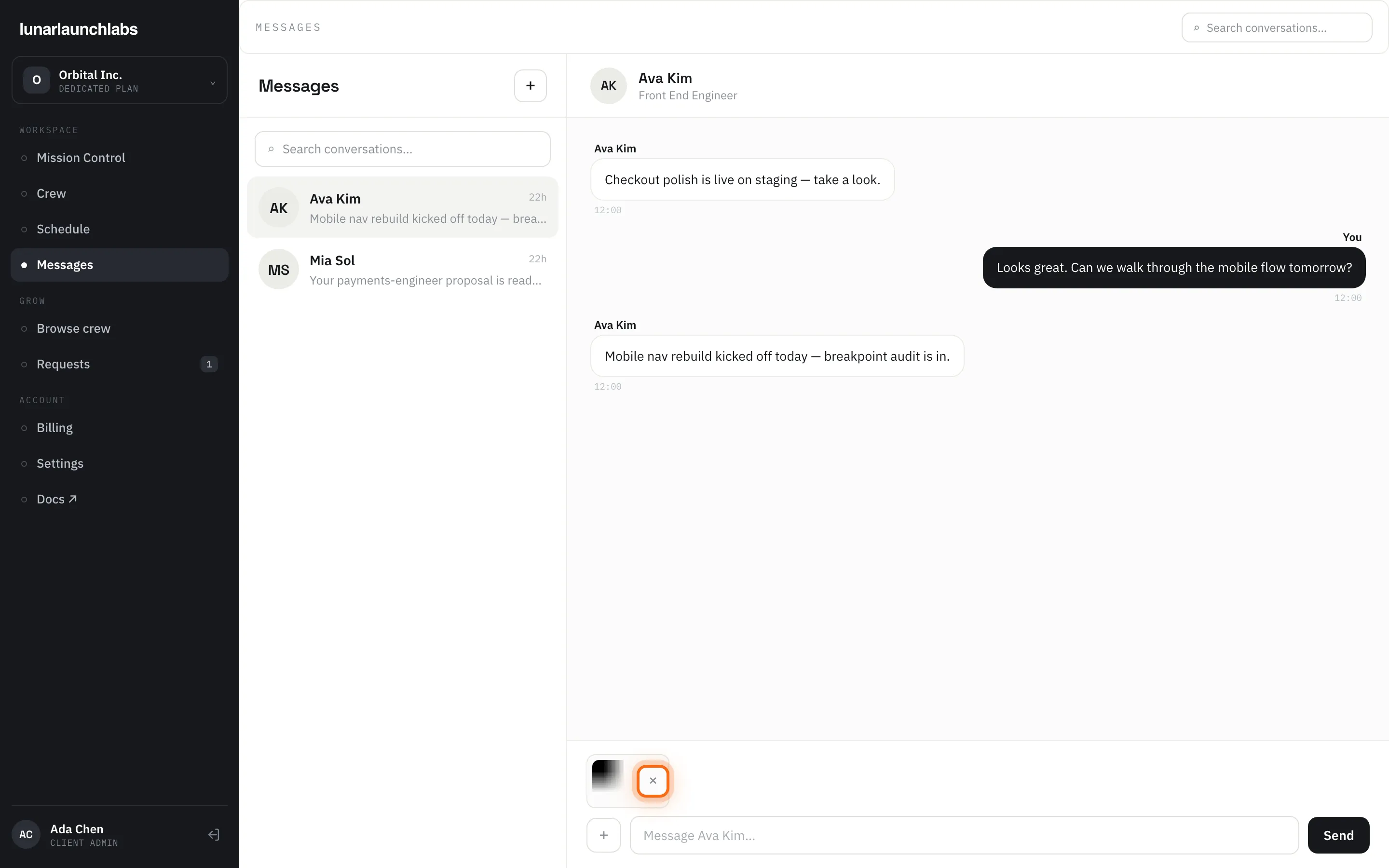
| Messages — the composer’s “+” button | An image attachment on a message | Every role |
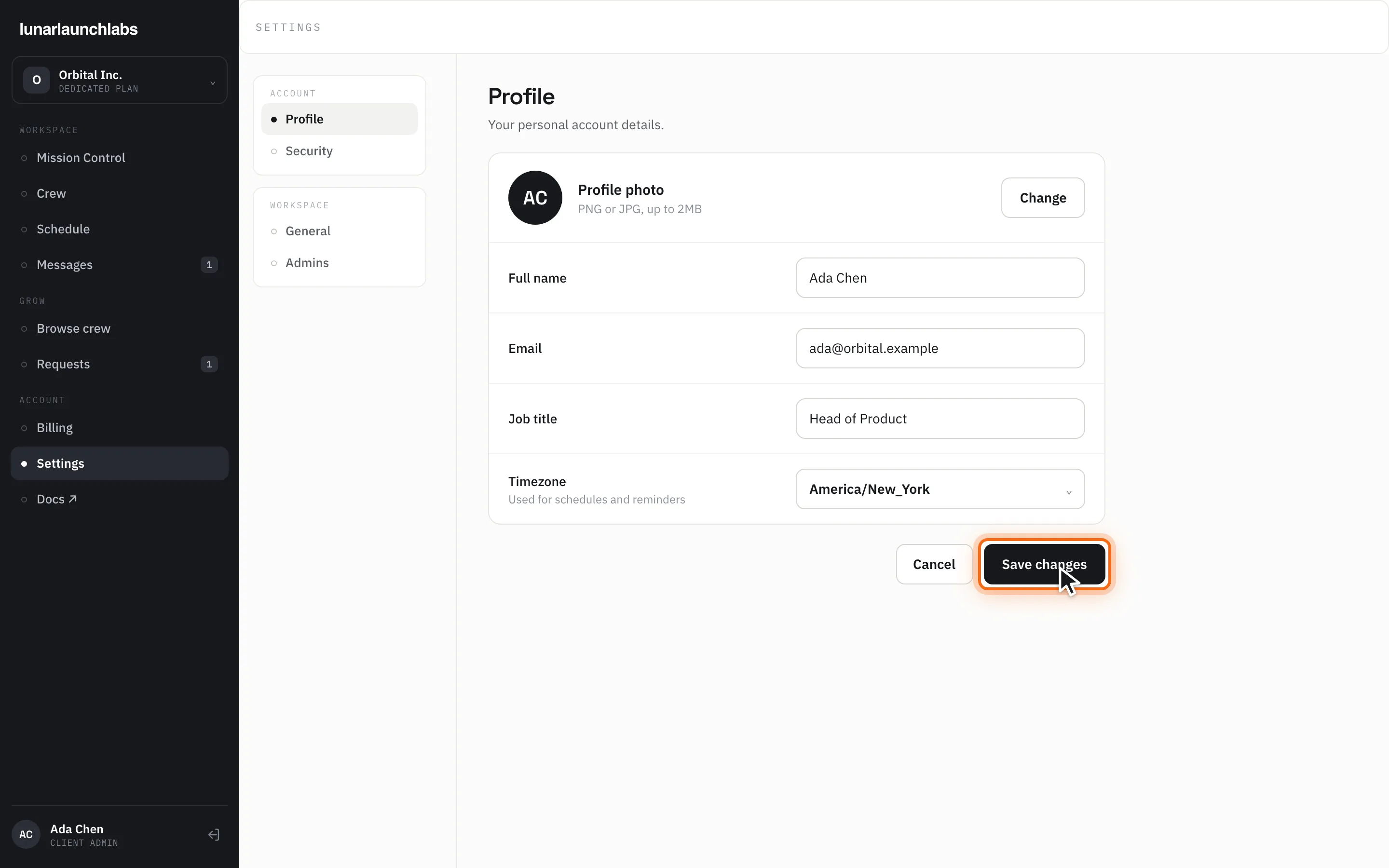
| Settings → Profile | Your profile photo | Clients (the vendor profile-photo control isn’t wired to an upload yet) |
| Settings → General | The workspace logo | Client workspace owners |
The most common of these is the message composer — an attached image appears as a thumbnail chip before you send:
Find the profile and workspace controls under Settings in your own workspace; the exact page lives in your role’s section of these docs.
Some documents and exports are generated by the app. Other records support private attachments with their own limits; follow the instructions shown on that record and in your role’s guide.
The rules
Section titled “The rules”The following rules apply to image uploads:
- Images only — PNG, JPEG, GIF, or WebP. The platform identifies the format from the file’s actual content, not its name or extension, so renaming
report.pdftoreport.pngdoesn’t get it through: “Only PNG, JPEG, GIF, or WebP images are allowed.” - 2 MB maximum — larger files are refused: “Images must be 2 MB or smaller.” Oversized uploads are rejected up front, before the file is transferred and buffered.
- Signed in — uploading requires an authenticated session. Access to private attachments is checked separately, as described below.
How uploaded files are stored and served
Section titled “How uploaded files are stored and served”- Each upload is stored under a random identifier — never your name, your account, or the original filename. The identifier is not sequential and does not encode your account or filename. A random identifier does not replace access controls.
- Explicitly public avatars and logos can be read by anyone with their link. Message images are private: before sending, only the uploader can read them; after sending, access is limited to authorized conversation participants. Sharing a private image link does not give another account permission to view it.
- Private attachments require authorization: sign in and open the document from the record you are allowed to view. A general image-file URL cannot grant access to a private document.
- Uploads are immutable: changing your avatar or logo uploads a new file and re-points your profile at it; the identifier itself never serves different content. The message interface has no attachment-edit or delete action; retention and authorized removal are handled separately.
When an upload fails
Section titled “When an upload fails”The surface you uploaded from shows the reason inline — the size and format messages above, or a generic “Could not upload the image.” for network hiccups. A failed message attachment never loses your draft: the composer keeps your text so you can retry.
Private documents
Section titled “Private documents”Private documents are available only to authorized people. If a download is unavailable, confirm that you are signed in to the correct account and contact L3 through Messages. Your role’s guide explains the document types and actions available to you.