Requests
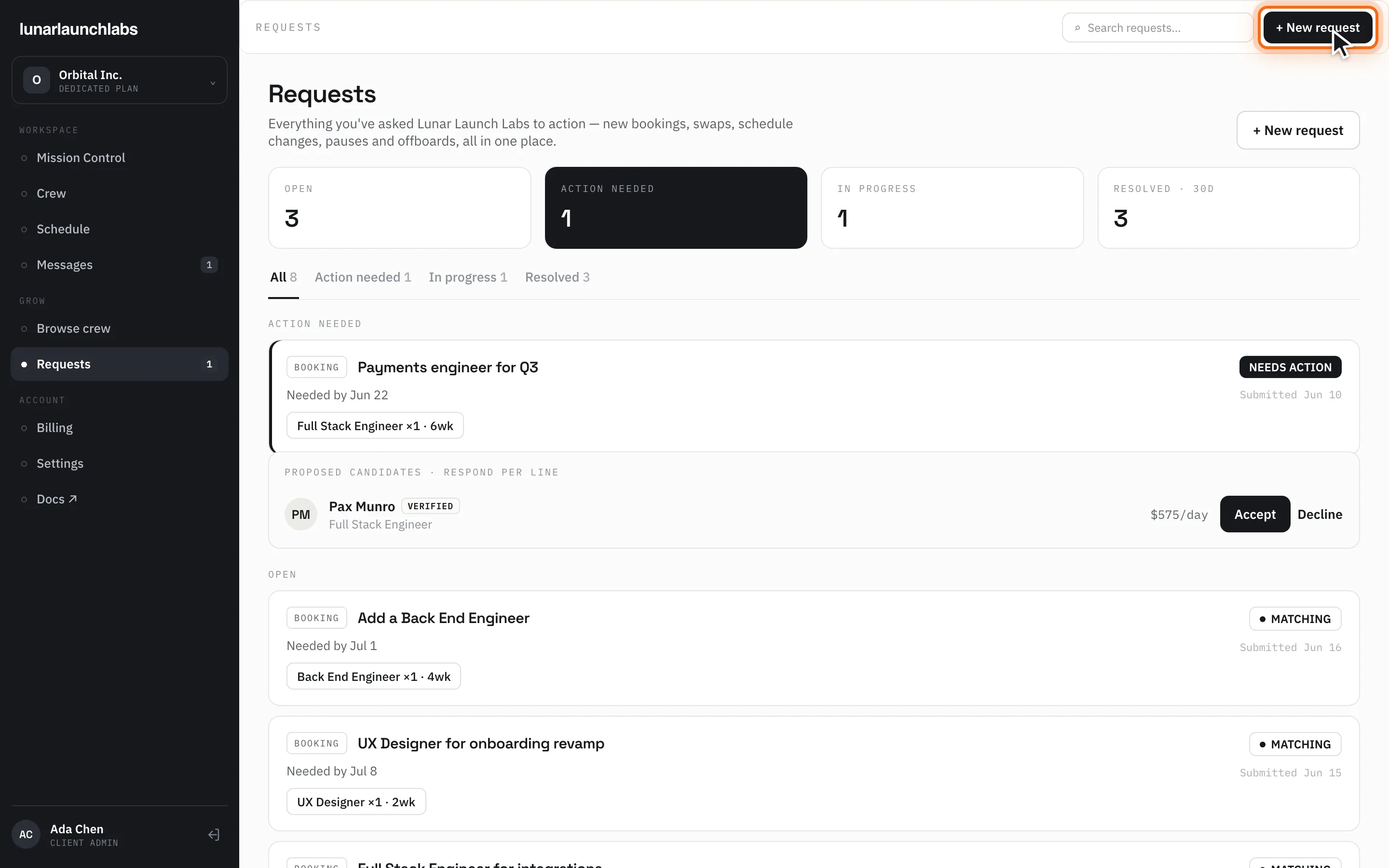
Requests (/requests) is where you ask Lunar Launch Labs for anything — new bookings, swaps, schedule changes, pauses, and offboards — and where you respond to the proposals that come back. The title is “Requests”, subtitled “Everything you’ve asked Lunar Launch Labs to action — new bookings, swaps, schedule changes, pauses and offboards, all in one place.”
The header has a search box (“Search requests…”) and “+ New request” (also reachable as /requests?new=1 — the target of every “+ Book a crew” button in the app). The sidebar’s Requests item shows a badge counting requests that need your action.
Tracking your pipeline
Section titled “Tracking your pipeline”Four summary tiles: OPEN, ACTION NEEDED (highlighted), IN PROGRESS, RESOLVED · ALL HISTORY. Tabs filter the list: All, Action needed, In progress, Resolved; in the All view, requests group under ACTION NEEDED, OPEN, IN PROGRESS, and RESOLVED · ALL HISTORY headers. Resolved totals include your full resolved history.
Each request card shows its type badge (BOOKING, SWAP, SCHEDULE, PAUSE, OFFBOARD), title, a subject line (“Needed by {date}” when you set one), a chip per requested line (“{Specialty} ×{qty} · {n}wk”), the submitted date, and a status pill:
| Pill | Meaning |
|---|---|
| MATCHING | The crew desk is working on it (newly filed, routed, or proposals coming in) |
| NEEDS ACTION | A proposal is waiting for your per-line response |
| BOOKED | At least one line was accepted and booked |
| RESOLVED | Completed |
| CANCELLED | Cancelled before booking |
Empty states: “No requests yet” — “Ask for crew, swaps or schedule changes — we’ll take it from there.”; or, for an empty tab, “Nothing here”. Load failure: “Could not load your requests. Please try again.” with Retry.
Filing a new request
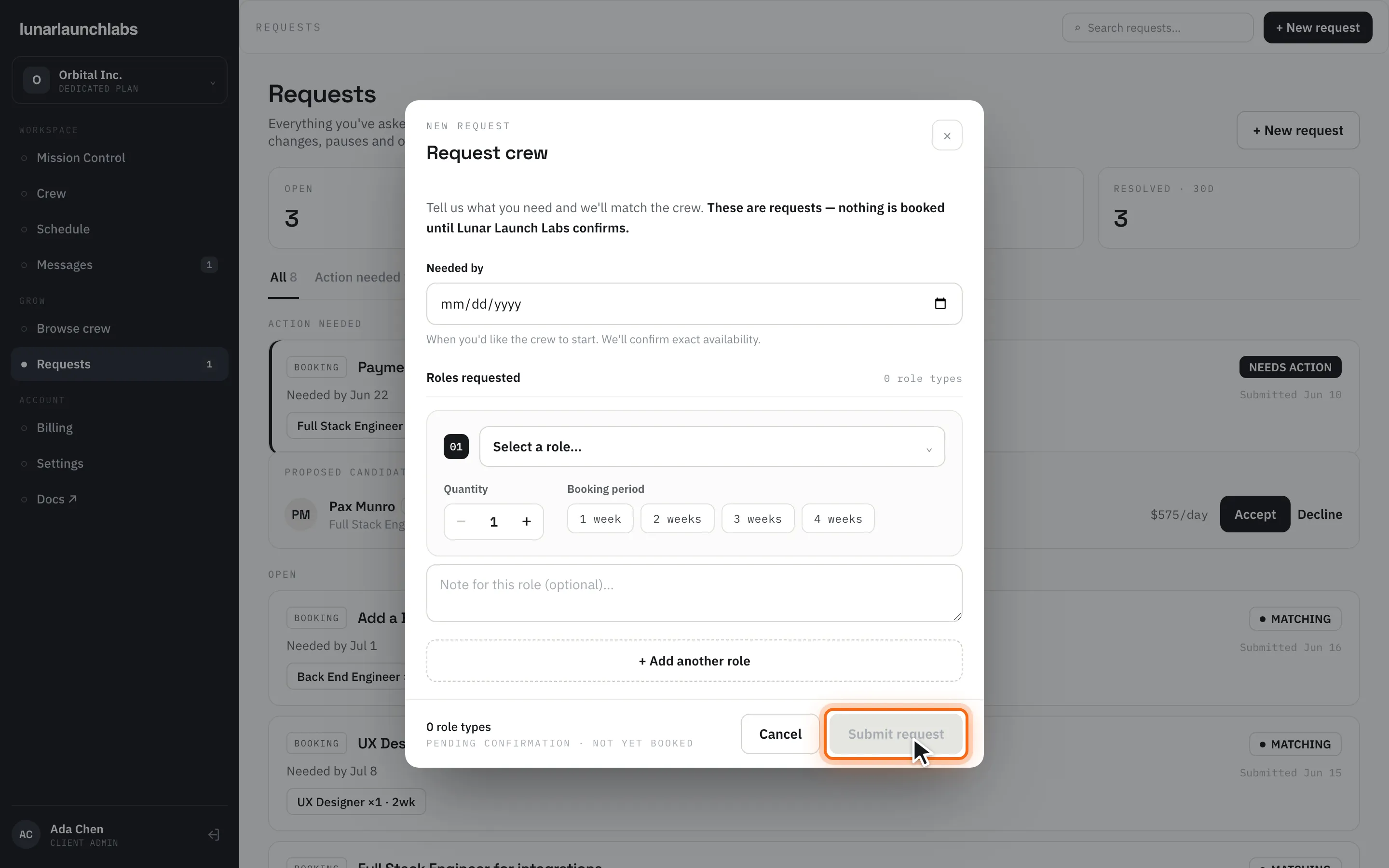
Section titled “Filing a new request”Click “+ New request”. The sheet is titled “Request crew” and opens with: “Tell us what you need and we’ll match the crew. These are requests — nothing is booked until Lunar Launch Labs confirms.”
- Optionally set “Needed by” — “When you’d like the crew to start. We’ll confirm exact availability.” (Placements start on Mondays; if the date passes before booking, the start rolls to the next Monday.)
- Under “Roles requested”, build one line per role: pick the role, set the quantity (1–10), choose a booking period (1 week – 4 weeks), and optionally add “Note for this role (optional)…”. Use “+ Add another role” for more lines; extra lines can be removed.
- Click “Submit request” (“Submitting…”; enabled once every line has a role and period).
The success screen — “Request submitted”, stamped “PENDING CONFIRMATION · NOT YET BOOKED” — lists what you asked for and explains: “Lunar Launch Labs is matching your crew now — nothing is booked until we send you candidates to approve. You’ll see this request under “Open” until then.“ The crew desk is notified by email the moment you file.
Responding to a proposal and reserving capacity
Section titled “Responding to a proposal and reserving capacity”When the crew desk sends candidates, the request turns NEEDS ACTION (you’ll also get the email “Your crew proposal is ready”). The card grows a panel labeled “PROPOSED CANDIDATES · RESPOND PER LINE”. Each line shows the candidate’s name (this is the reveal moment), a VERIFIED tag, their title, and their all-in day rate (e.g. $840/day).
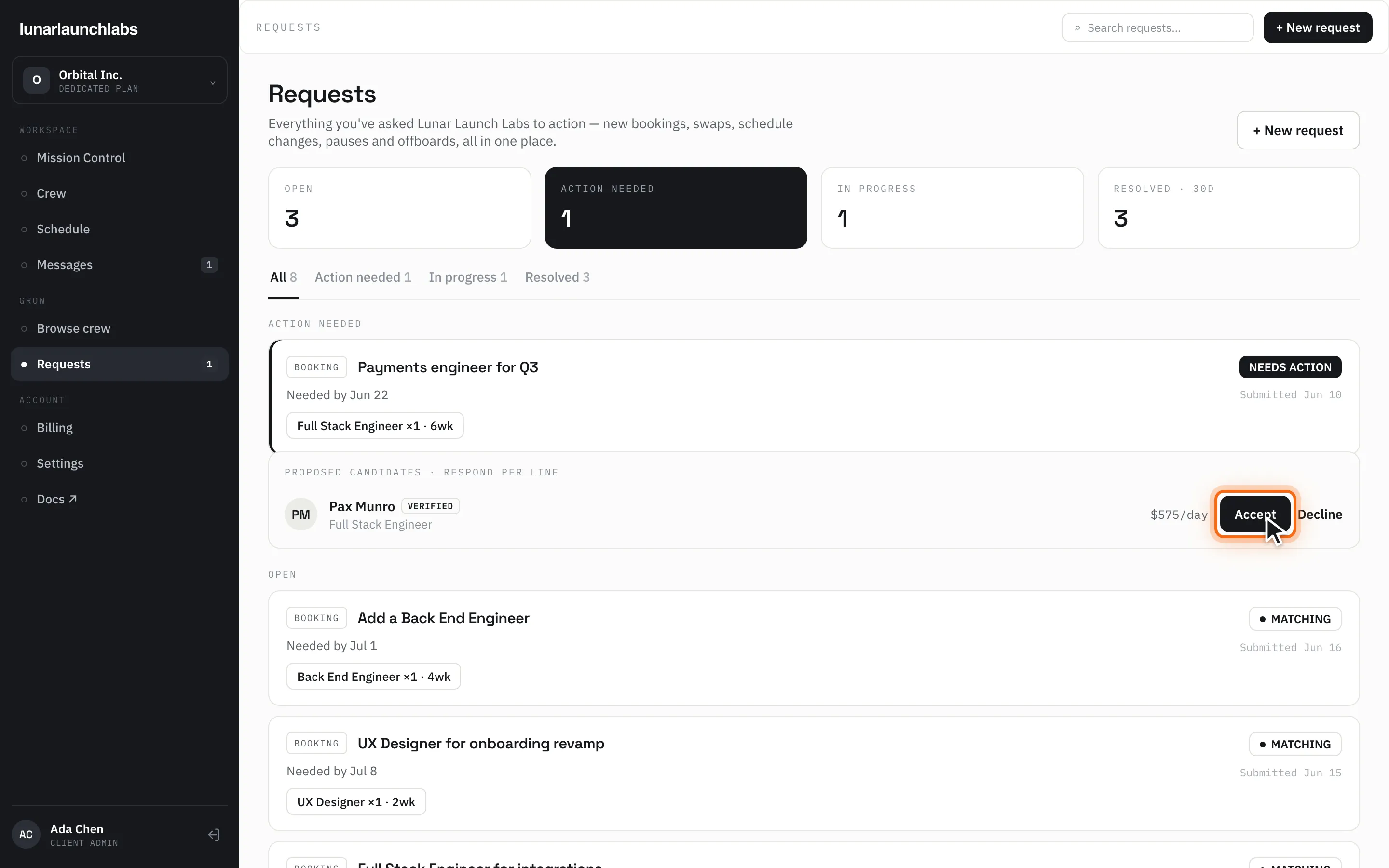
Respond to each line independently:
-
Decline — arms an inline confirmation (“This can’t be undone — the line resolves as declined and this candidate can’t be re-accepted.”); click “Confirm decline” to resolve the line as DECLINED. If you decline every line, the request goes back to the crew desk for another match.
-
Accept — opens the booking confirmation, with up to two checkboxes:
- “I have authority to bind my company and accept the Master Client Services Agreement.” (links to /mcsa) — shown the first time you book (each admin accepts on their own first booking), and again if the MCSA is updated to a new version.
- “I accept the Placement Order terms for this booking at the day rate shown.” (links to /placement-order) — required for every booking.
Then click “Confirm booking” (“Booking…”).
Your client acceptance is recorded immediately; authorization for service is a separate step:
- A placement is reserved at the shown day rate, with planned dates based on the needed-by date, booking period and cadence.
- The candidate appears in Crew as Reserved. Planned days hold capacity, but do not authorize service or create invoices or payables.
- Your acceptance (with document versions) is recorded in the platform’s audit trail.
- The assigned contractor needs an active account and must review the service window, planned days and applicable agreement in Placement reservations, then explicitly accept admission. Only then do the reviewed future days become authorized service on Schedule.
- If the account or required agreement is unavailable, the placement stays Reserved; contact L3 before starting. A missed start needs review of a future window, not silent authorization of past service.
Pending or cancelled capacity does not erase work already performed or its earned claims. The reservation guide explains the client’s report-count/status view, preserved agreement history and entitled financial records. Detailed work reports are available only to administrators and the assigned contractor.
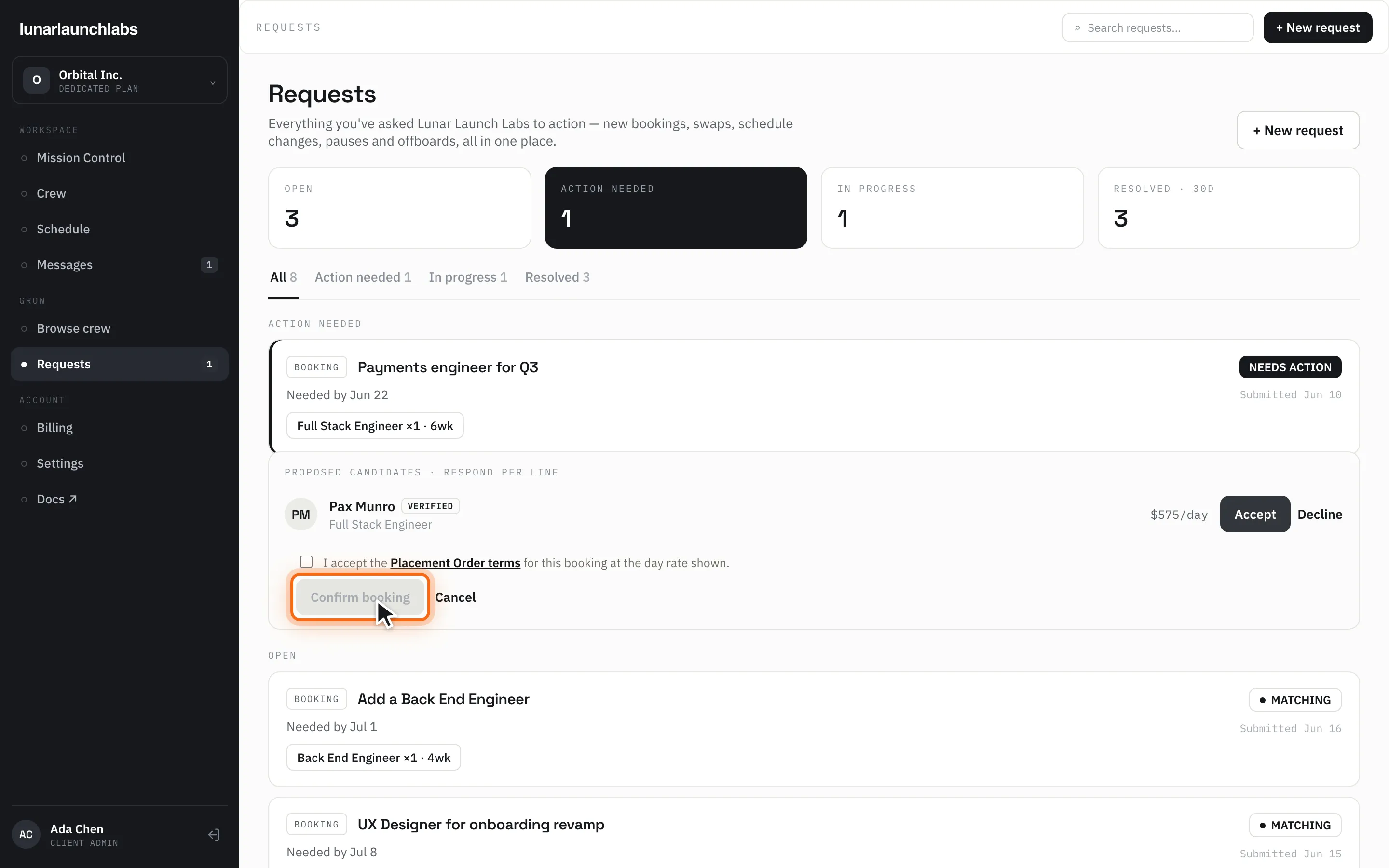
If a line was already resolved elsewhere you’ll see “Line already resolved” (other races answer similarly — a filled role, a candidate “just booked elsewhere”, or a request no longer available); the “Confirm booking” button stays disabled until you tick the required checkbox(es).
Lifecycle requests (pause, offboard, swap, schedule)
Section titled “Lifecycle requests (pause, offboard, swap, schedule)”Pause, offboard, and swap requests are filed from the crew member detail sheet; they appear here as PAUSE / OFFBOARD / SWAP cards and follow the same pipeline. Swap proposals come back for per-line acceptance exactly like bookings.