Schedule
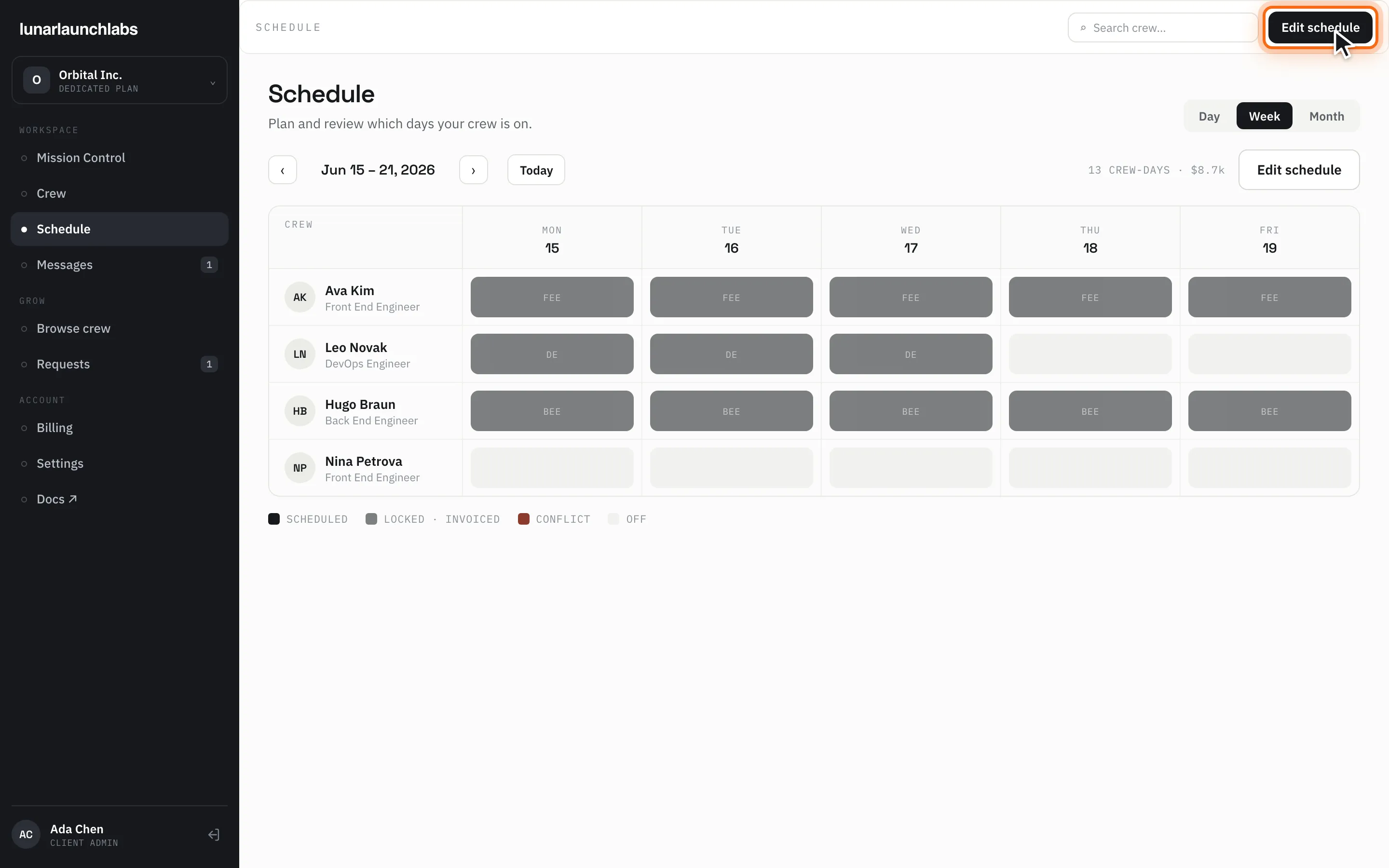
Schedule (/schedule) is your crew’s week grid — one row per placement, Monday–Friday. The title is “Schedule” (“Plan and review which days your crew is on.”). The header carries a search box (“Search crew…”) and the “Edit schedule” action; the page identifies the supported Week view.
Reading the grid
Section titled “Reading the grid”- Navigate weeks with ‹ / › beside the week label (e.g. “Jun 22 – 28, 2026”); Today returns to the current week.
- The meta line totals the week: “{N} CREW-DAY(S) · $X.Xk” — every scheduled day at your day rates.
- Rows show the member (avatar, name, role); day cells show a short role code (e.g.
FE) when scheduled, “!” for conflicts, or nothing for off days.
The legend
Section titled “The legend”| Swatch | Meaning |
|---|---|
| SCHEDULED | A confirmed working day |
| LOCKED · INVOICED | Reserved in an invoice — immutable in the schedule |
| CONFLICT | The day overlaps the crew member’s time off — the crew desk resolves it with you (reschedule or swap) |
| OFF | Not scheduled |
Empty state: “No crew scheduled” — “Once your crew is booked, their weekly schedule shows up here.” Load failure: “Could not load your schedule. Please try again.” with Retry.
Editing the schedule
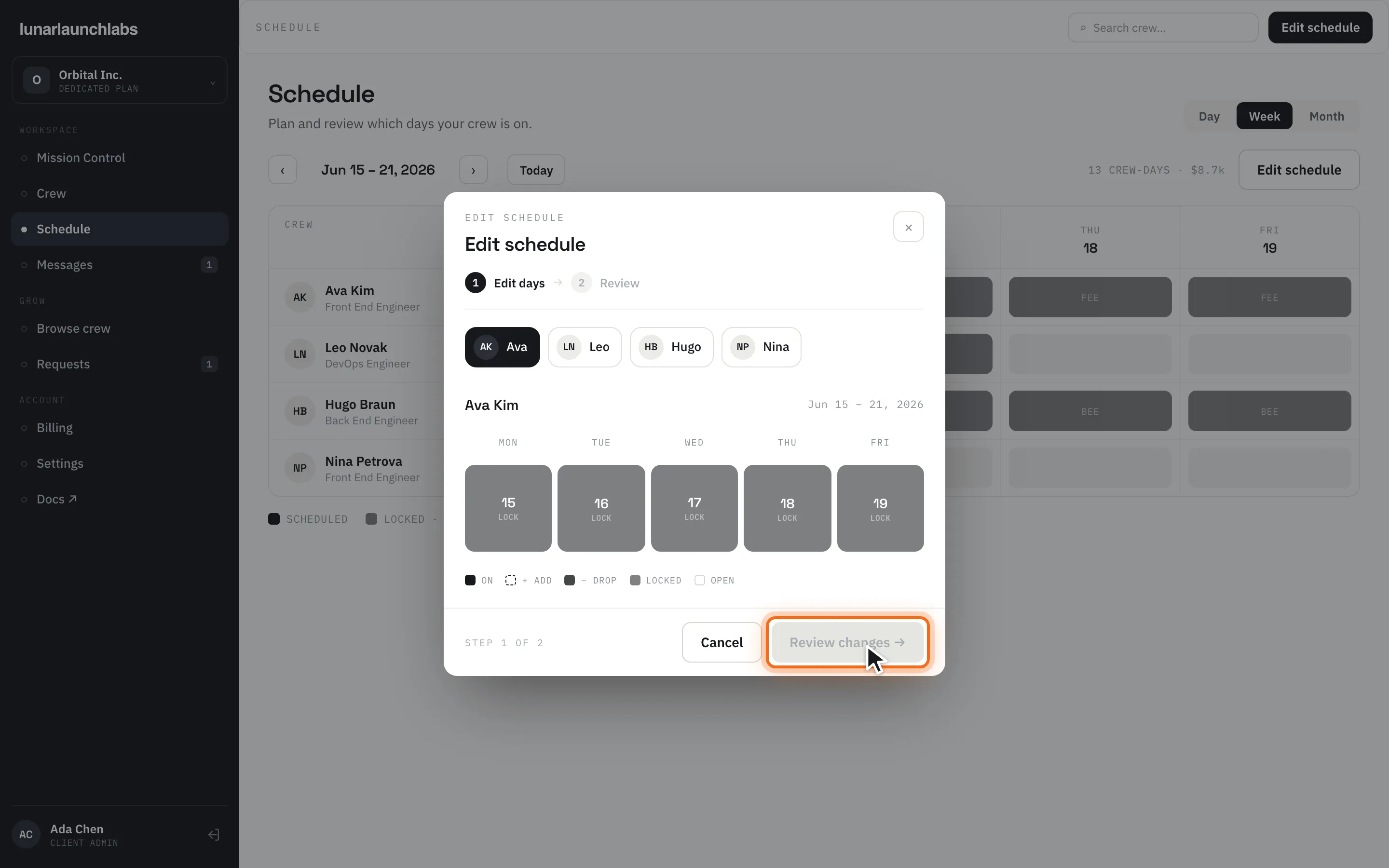
Section titled “Editing the schedule”Click “Edit schedule” (or arrive via the header action — /schedule?edit=1). The modal batches any number of changes across your crew into one confirmation, in two steps (step rail: Edit days → Review).
Step 1 — Edit days
Section titled “Step 1 — Edit days”- Pick a crew member from the chips at the top (each chip shows a badge counting your pending changes for that member).
- Click day cells to toggle changes: clicking an open day marks it + ADD; clicking a booked day marks it − DROP; clicking again clears the pending change.
- Days you can’t touch are disabled with a tooltip: “Already invoiced” (locked days) or “In the past”.
- The picker legend reads:
ON,+ ADD,− DROP,LOCKED,OPEN. - Click “Review changes →” (enabled once you’ve made at least one change).
Step 2 — Review
Section titled “Step 2 — Review”Each change lists the member, the day (“Add Wed Jul 8” / “Drop Wed Jul 8”), and its signed amount (“+$840” / “−$840”), with a COST DELTA total and the note: “added days (including this week’s) bill on your next invoice; dropped days are simply never billed.”
Click “Confirm changes” (“Applying…”). The success screen — “Schedule updated” — confirms “{n} changes applied” and repeats the cost-delta note, stamped “REFLECTED ON YOUR NEXT INVOICE”.
The review and cost delta are only a preview. If confirmation is refused, no service days are added or dropped by that refused change, and the preview creates no invoice or payable. A Reserved placement first needs an active contractor account and acceptance of its applicable agreement and placement admission before future service can be authorized.
Rules the editor enforces
Section titled “Rules the editor enforces”The server double-checks every change; violations come back as inline errors:
- “Capacity is reserved; agreement admission is still pending.” — planned reservation days are not authorized service. Complete the applicable review through Placement reservations; contact L3 if the contractor account or agreement is unavailable.
- “{date} is already invoiced and locked” — locked days never change. An admin reviews completed services before issuance.
- “{date} is in the past and locked” — past days are history.
- “Weekends cannot be scheduled” — crew weeks run Monday–Friday.
- “This placement is paused — resume it first” — paused placements can’t be scheduled; arrange the resume through the crew desk.
- “This placement has ended — days cannot be added” — adds only land on live placements.
- “{date} is outside the placement window” — added days must fall inside the placement’s booked period.
- “{date} conflicts with approved time off” — the crew member has recorded leave that day.
How changes hit your invoice
Section titled “How changes hit your invoice”Nothing is refunded or re-invoiced mid-cycle. Instead:
- Adds to future, uninvoiced days become eligible after those services have been rendered.
- Drops of future, uninvoiced days remove them before they’re ever billed — nothing to credit, because invoiced days can’t be dropped at all.
- Changes to an already-invoiced week aren’t possible in the editor (those days are locked); if something must change there, contact the crew desk — draft corrections are bounded by the agreed charge and retain an audit trail. Issued invoices require a documented resolution with L3.