Client guide
As a client, your workspace is where you book vetted crew from Lunar Launch Labs, manage their weekly schedules, message them, and handle billing. This section documents everything your account can see and do.
How the platform works from your side
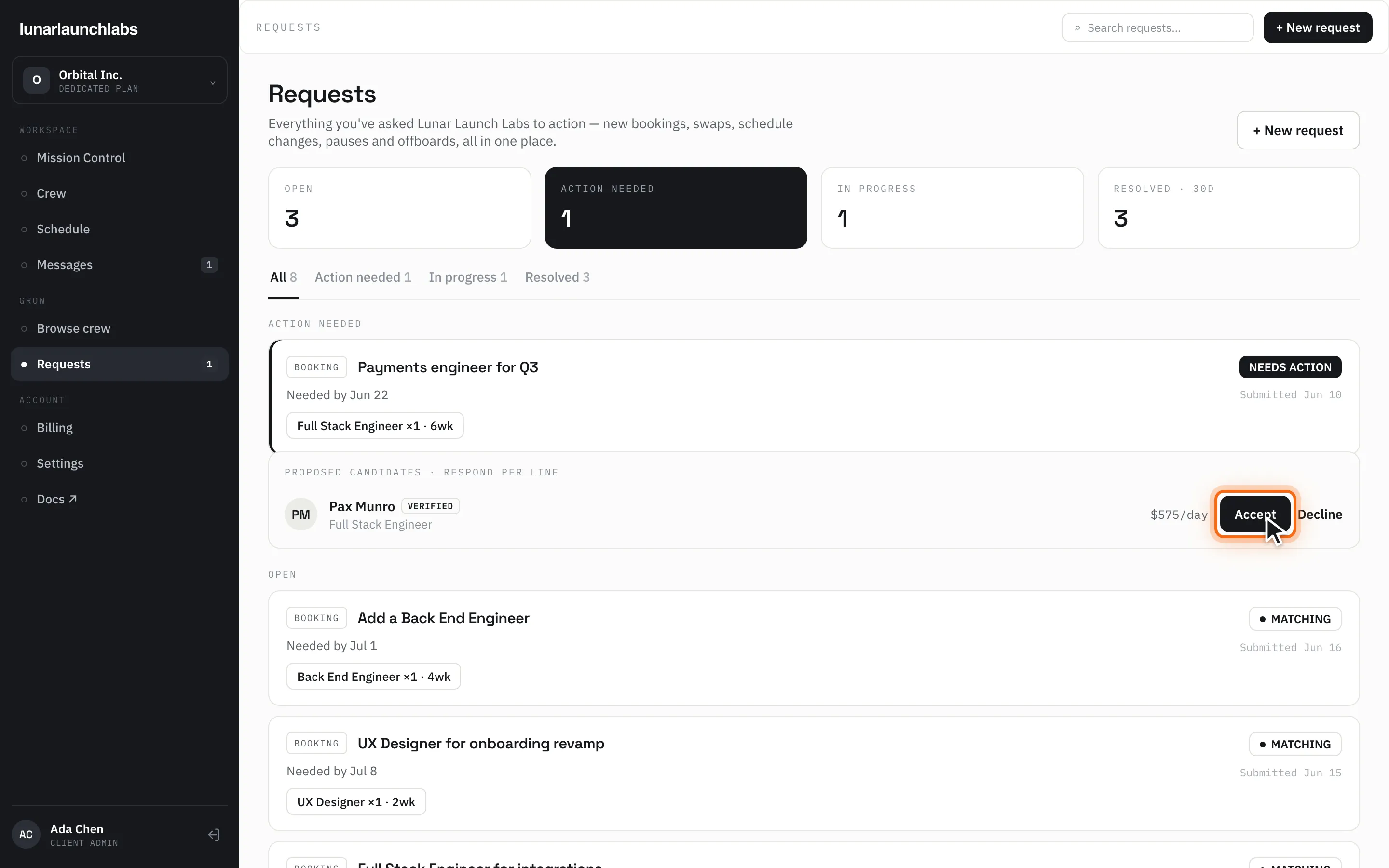
Section titled “How the platform works from your side”- You ask for crew by filing a request (a role, a quantity, a booking period). The Lunar Launch Labs crew desk matches it and sends back a proposal with named, verified candidates and one all-in day rate per candidate.
- Candidates are anonymous while you browse and revealed by name at proposal time. Crew are sourced through Lunar Launch Labs’ supplier network; suppliers are never identified, and your identity is never shared with them — you deal with L3 alone, and your payment obligation runs solely to L3.
- Accepting a proposal line records your client acceptance and reserves capacity. The candidate appears in Crew as Reserved, with planned dates. Service is authorized only after the assigned contractor reviews and accepts the applicable agreement and placement admission.
- Billing is after services are rendered: an L3 admin reviews and explicitly issues each invoice. Payment follows the invoice due date and agreed bank instructions.
Getting an account
Section titled “Getting an account”Clients self-register — see Accounts & sign-in. Registration creates your company workspace with your chosen plan and makes you its owner; you can invite more admins later from Settings → Admins.
Your plan
Section titled “Your plan”Your workspace is on one of two pricing plans, chosen at registration:
- Dedicated — “Committed weekly crew · best rates”
- Flex — “Book on demand · flexible rates”
The plan determines the day rate you see for every candidate. Plan changes aren’t self-serve (they reprice every placement) — contact Lunar Launch Labs.
Your app at a glance
Section titled “Your app at a glance”The sidebar shows your workspace tile (name + plan, e.g. DEDICATED PLAN) and your name with CLIENT ADMIN at the bottom. Navigation:
| Nav item | Route | What it’s for |
|---|---|---|
| Placement reservations (WORKSPACE) | /placement-admissions |
Review reserved capacity, service windows and placement admission |
| Mission Control (WORKSPACE) | /mission-control |
Dashboard: current placements, schedule days, this week’s schedule estimate, requests and issued billing |
| Crew (WORKSPACE) | /crew |
Your roster — profiles, work logs, pause/offboard/swap |
| Schedule (WORKSPACE) | /schedule |
The week grid — add and drop crew days |
| Messages (WORKSPACE) | /messages |
Chat with your crew and Lunar Launch Labs |
| Browse crew (GROW) | /browse-crew |
Available roles, capacity, and starting rates |
| Requests (GROW) | /requests |
File requests, review proposals, accept candidates |
| Billing (ACCOUNT) | /billing |
Completed-service invoices, payment status, historical records and CSV export |
| Settings (ACCOUNT) | /settings |
Profile, security, workspace, admins |
| Agreements (ACCOUNT) | /agreements |
Read your prior agreement acceptances and available exact document text |
| Docs ↗ (ACCOUNT) | — | Opens this documentation site in a new window |
SCHEDULE DAYS / WK counts schedule entries this week, including conflicts. THIS WEEK ESTIMATE is scheduled value at your client rates; it is not an invoice or a balance due. Use Billing for issued invoices and their collection history.
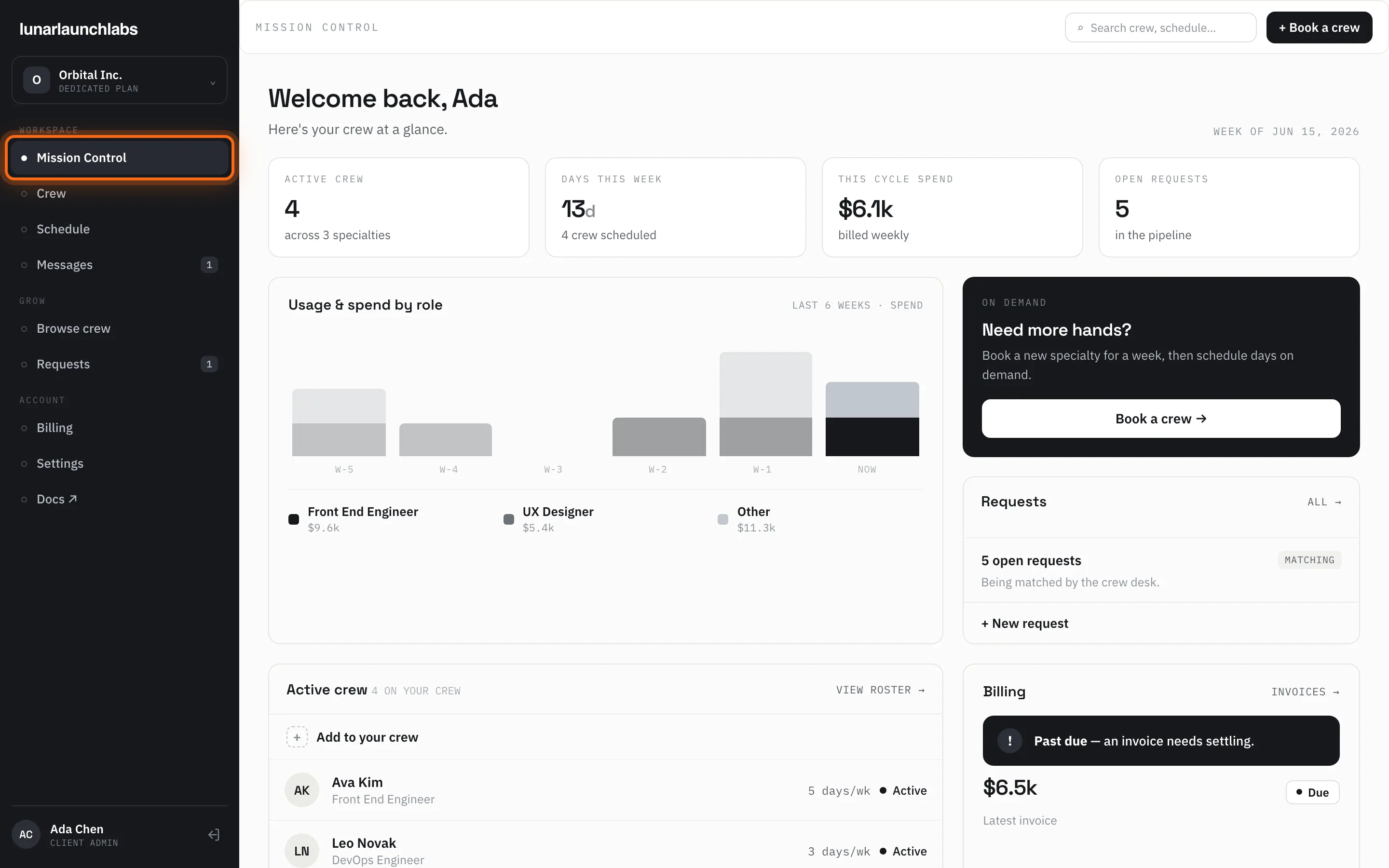
The Requests nav item shows a badge when proposals need your response; Messages shows your unread count. Any unknown URL redirects to /mission-control. Legal documents stay reachable while signed in: /terms, /privacy, and your commercial docs /mcsa and /placement-order.
From zero to a working crew
Section titled “From zero to a working crew”- Look at capacity — Browse crew shows every role L3 can staff, who’s ready now, and rates from.
- File a request — press “+ Book a crew” anywhere, or “+ New request” on Requests. Nothing is booked yet — the crew desk matches first.
- Review the proposal — you’ll get the email “Your crew proposal is ready”; the request flips to NEEDS ACTION. Each line shows a named, verified candidate and their all-in day rate.
- Accept per line and review the reservation — confirm the displayed MCSA (on each admin’s first booking or when updated) and Placement Order terms. Your acceptance is recorded, and the candidate appears in Crew as Reserved. Planned days hold capacity; they are not yet authorized service. In Placement reservations, the assigned contractor needs an active account and must review and accept the applicable agreement and admission. If the account or agreement is unavailable, contact L3; the placement stays Reserved.
- Run the admitted engagement — after admission authorizes the reviewed future service days, adjust eligible days on Schedule, read work logs and weekly summaries on the crew detail, message your crew, and review admin-issued invoices for completed services on Billing. Planned reservation days alone do not create invoices or payables.
- Change course any time — pause, offboard, or swap from the crew detail sheet; everything routes through the crew desk as a request.